> ## Documentation Index
> Fetch the complete documentation index at: https://docs.buildvision.io/llms.txt
> Use this file to discover all available pages before exploring further.
# Forward bid invites
> Send bid invitations to BuildVision from any mailbox.
Forward a bid invitation to **[bids@buildvision.io](mailto:bids@buildvision.io)** and BuildVision adds it to
your account. You can do it one message at a time, set your mail client to do
it for you, or have IT copy the address on everything.
Tell us before you start. Forwarding needs a little configuration on our side
today, so email [support@buildvision.io](mailto:support@buildvision.io) and
we'll set your company up. We're working toward making this something you
switch on yourself.
## Before you start
Two things catch most teams out.
**The first message needs verifying.** Gmail and Outlook send a one-time
verification message to `bids@buildvision.io` when you add it as a forwarding
address. Nobody at your company receives that message, so email
[support@buildvision.io](mailto:support@buildvision.io) and we'll confirm it.
Until it's confirmed, forwarding won't start.
**Your tenant may block forwarding to outside addresses.** Plenty of
organizations disable external forwarding by default, and the failure looks
like nothing happening at all. In Microsoft 365 a blocked message bounces with
`5.7.520`. Your administrator can allow it:
* [Google Workspace: turn on external forwarding](https://support.google.com/a/answer/14724207)
* [Microsoft 365: outbound spam policies and external forwarding](https://learn.microsoft.com/en-us/defender-office-365/outbound-spam-policies-external-email-forwarding)
## Forward a single bid
Forward the original invitation, with its attachments, to
**[bids@buildvision.io](mailto:bids@buildvision.io)**. Forward the whole message rather than a reply, so
BuildVision gets the attachments and links from the original.
This is the right way to try BuildVision on a few real bids before changing any
settings.
## Forward automatically from your inbox
Set a rule once and your bids arrive without you thinking about it.
Gmail uses a filter to forward only the messages you choose.
Add the filter in the next step. A forwarding address on its own sends
**every** message in your inbox to BuildVision.
Use Gmail in a desktop browser. The mobile app can't set up forwarding.
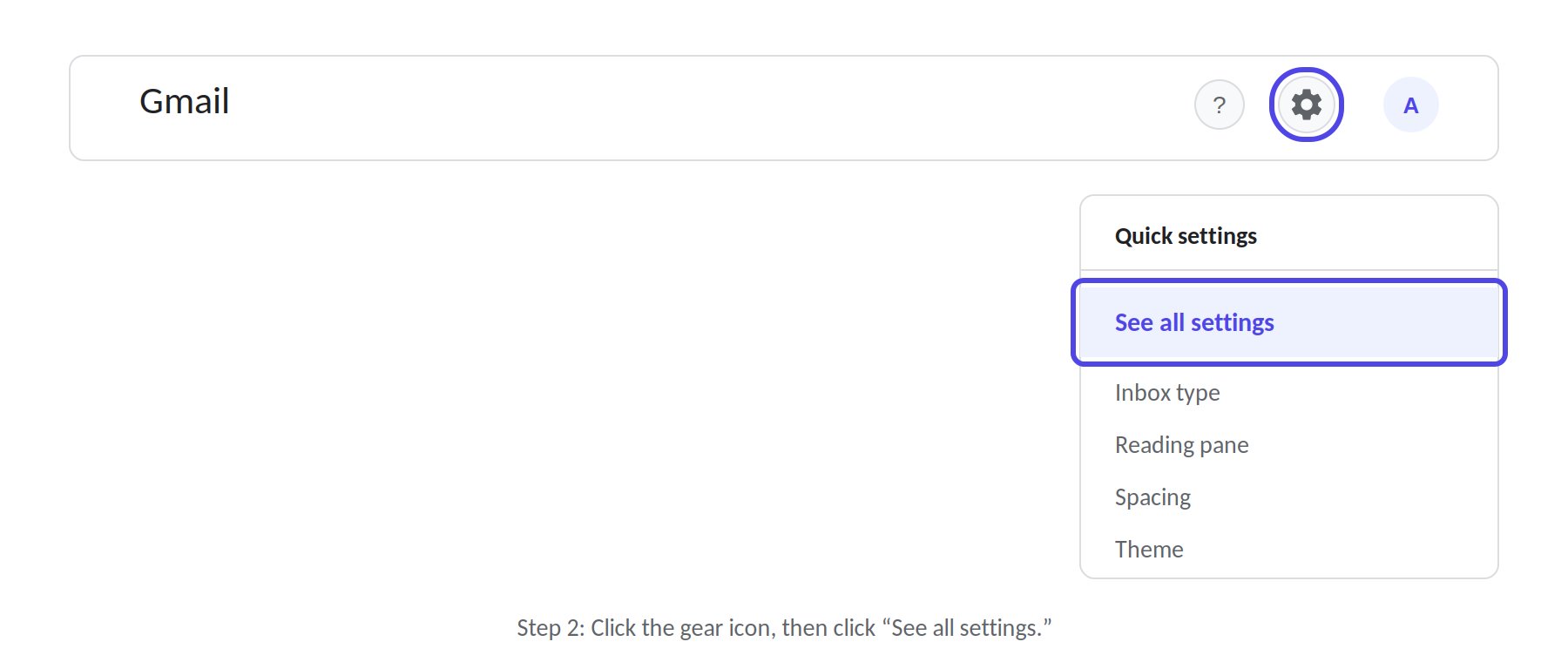
1. Select the **gear icon**, then **See all settings**.
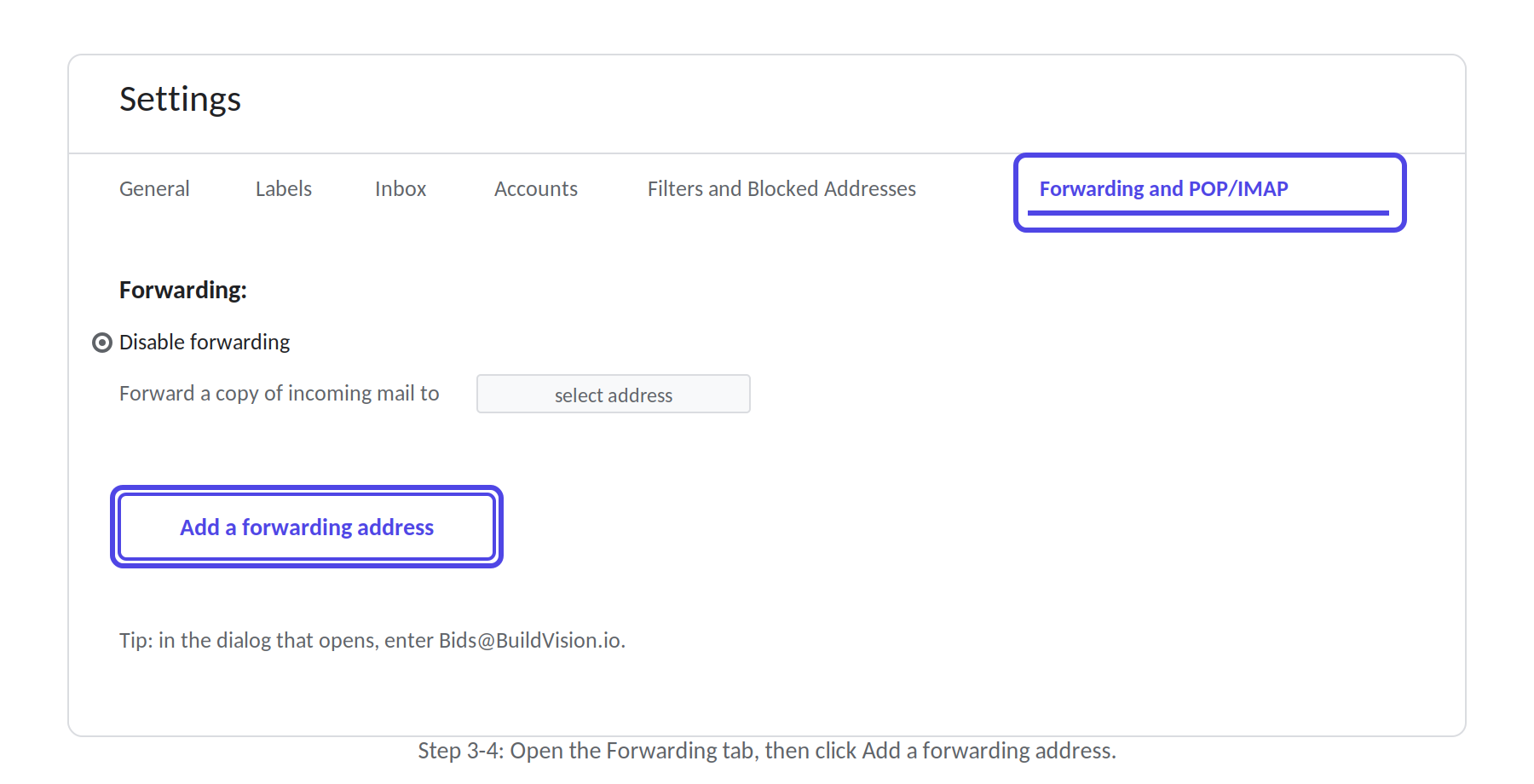
2. Open the **Forwarding and POP/IMAP** tab.
3. Select **Add a forwarding address**, enter `bids@buildvision.io`, then
**Next → Proceed → OK**.
 Gmail now sends its verification message. Email
[support@buildvision.io](mailto:support@buildvision.io) to have it confirmed.
Once it is, the address shows as verified and you can continue.
Go to **gear icon → See all settings → Filters and Blocked Addresses →
Create a new filter**.
Gmail now sends its verification message. Email
[support@buildvision.io](mailto:support@buildvision.io) to have it confirmed.
Once it is, the address shows as verified and you can continue.
Go to **gear icon → See all settings → Filters and Blocked Addresses →
Create a new filter**.
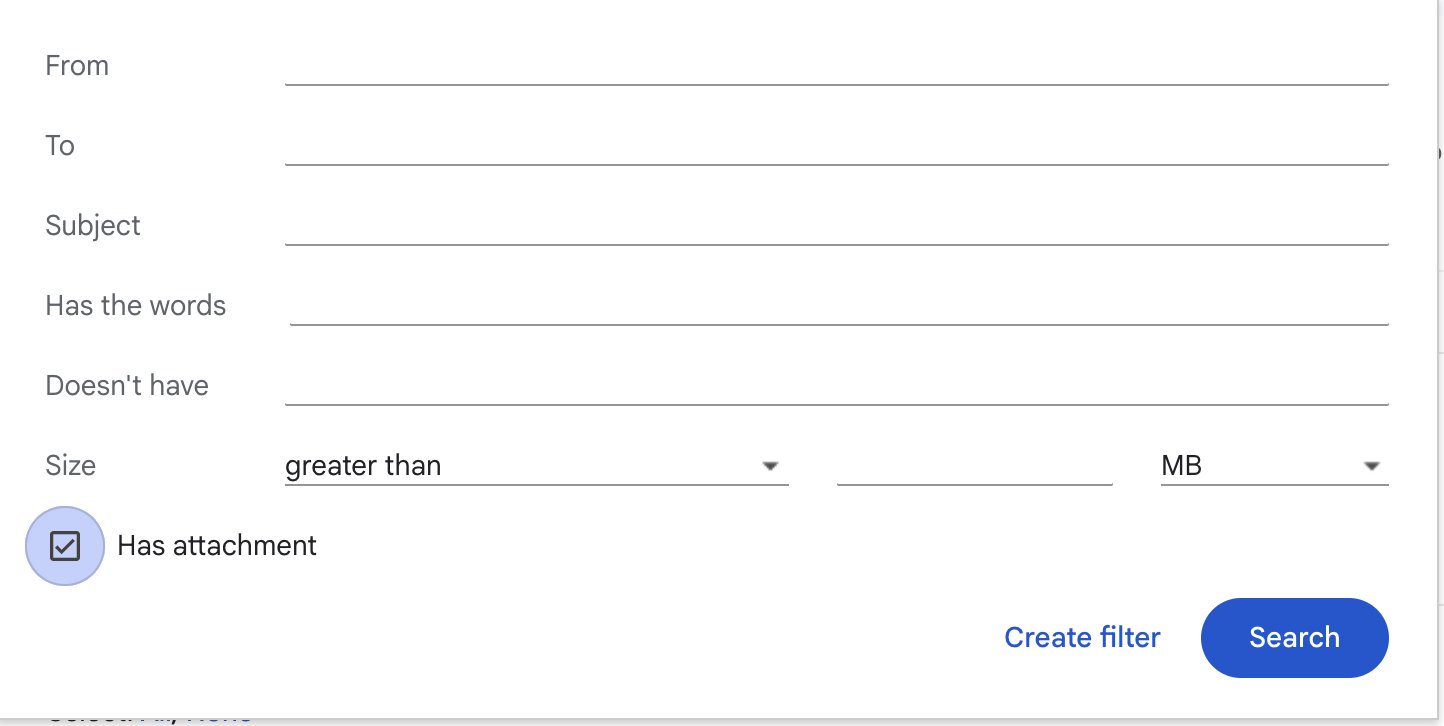
 Enter criteria that match your project mail:
* **From** a contractor domain, such as `@contractordomain.com`
* **Subject** terms such as `Bid`, `RFQ`, `Proposal`, or `Quote`
* **Has attachment**, so BuildVision receives drawings, schedules, and specs
Enter criteria that match your project mail:
* **From** a contractor domain, such as `@contractordomain.com`
* **Subject** terms such as `Bid`, `RFQ`, `Proposal`, or `Quote`
* **Has attachment**, so BuildVision receives drawings, schedules, and specs
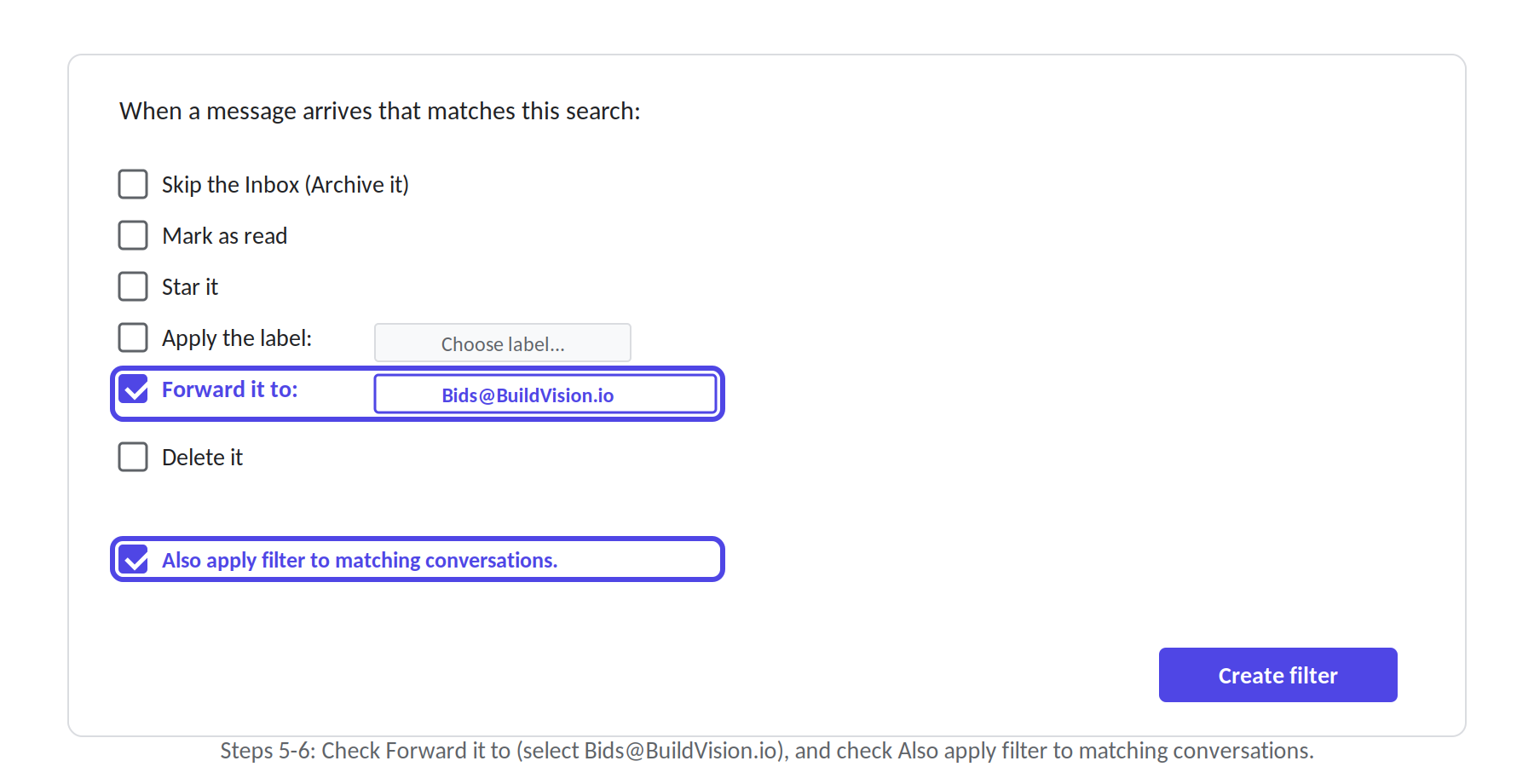
 Select **Create filter**, then check **Forward it to** and choose
`bids@buildvision.io`. Check **Also apply filter to matching conversations**
to send the project mail already in your inbox, so BuildVision has the
history too. Select **Create filter** to save.
Select **Create filter**, then check **Forward it to** and choose
`bids@buildvision.io`. Check **Also apply filter to matching conversations**
to send the project mail already in your inbox, so BuildVision has the
history too. Select **Create filter** to save.
 Create one filter per contractor or distribution list. A message matching
several filters is still only forwarded once.
Google's own guides: [automatically forward Gmail
messages](https://support.google.com/mail/answer/10957) and [create rules to
filter emails](https://support.google.com/mail/answer/6579).
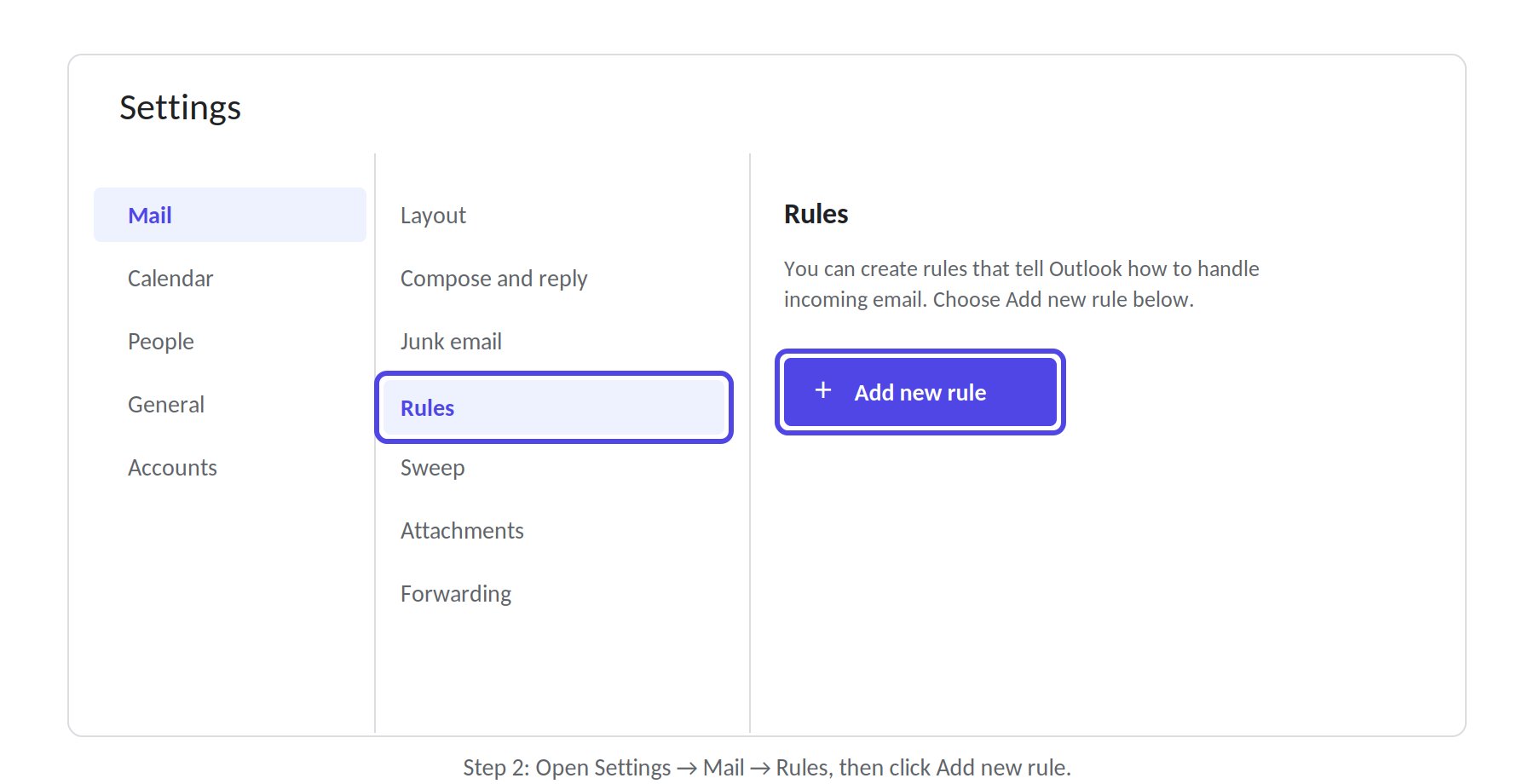
Sign in at [outlook.office.com](https://outlook.office.com), or
[outlook.live.com](https://outlook.live.com) for a personal account. Go to
**Settings → Mail → Rules** and select **Add new rule**.
Create one filter per contractor or distribution list. A message matching
several filters is still only forwarded once.
Google's own guides: [automatically forward Gmail
messages](https://support.google.com/mail/answer/10957) and [create rules to
filter emails](https://support.google.com/mail/answer/6579).
Sign in at [outlook.office.com](https://outlook.office.com), or
[outlook.live.com](https://outlook.live.com) for a personal account. Go to
**Settings → Mail → Rules** and select **Add new rule**.
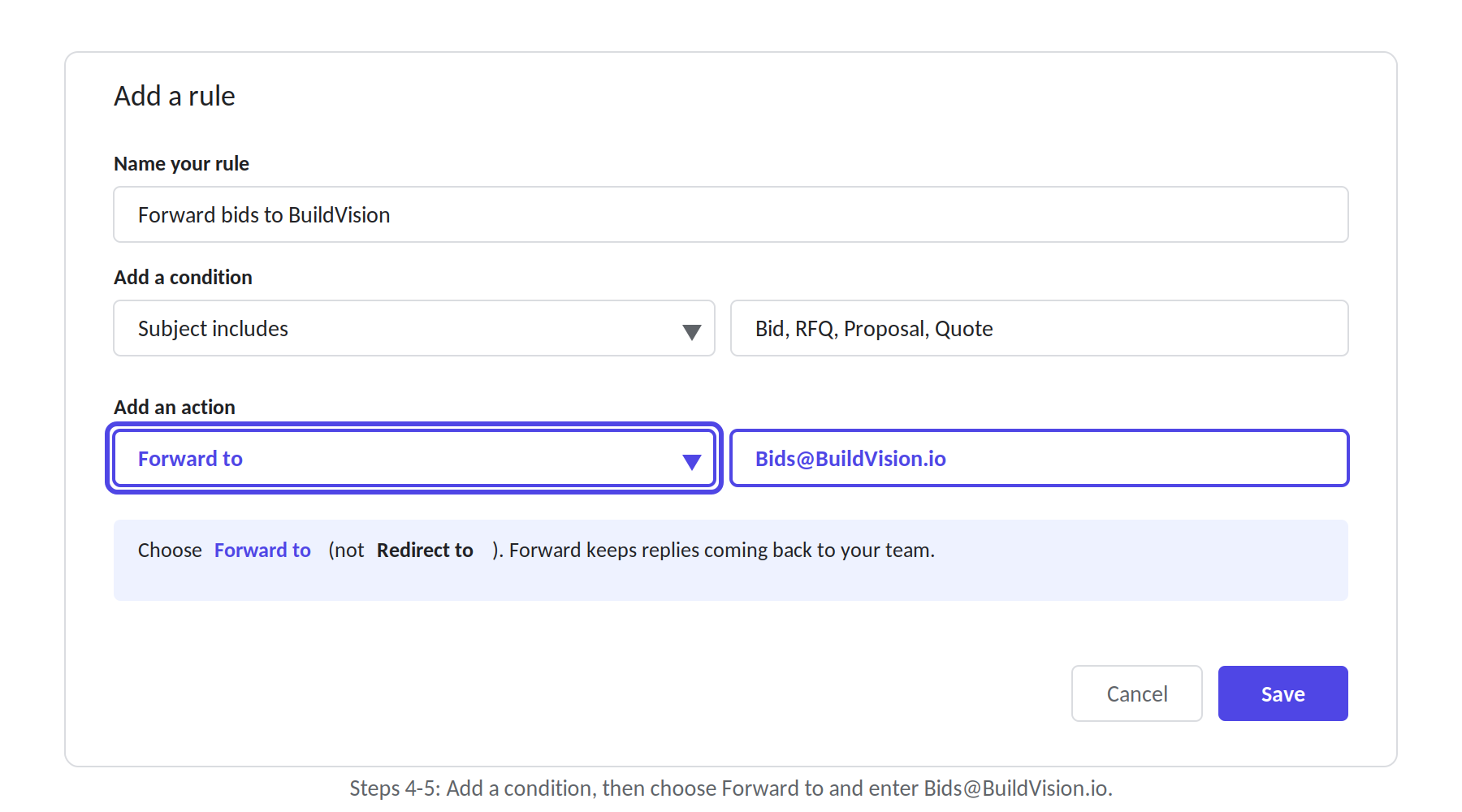
 Name the rule something you'll recognize, such as `Forward bids to
BuildVision`. Add a condition: **From** a contractor or domain, **Subject
includes** `Bid`, `RFQ`, `Proposal`, or `Quote`, or **Has attachment**.
Add the action **Forward to**, not **Redirect to**, and enter
`bids@buildvision.io`. Select **Save**. The rule applies to new messages
straight away.
Name the rule something you'll recognize, such as `Forward bids to
BuildVision`. Add a condition: **From** a contractor or domain, **Subject
includes** `Bid`, `RFQ`, `Proposal`, or `Quote`, or **Has attachment**.
Add the action **Forward to**, not **Redirect to**, and enter
`bids@buildvision.io`. Select **Save**. The rule applies to new messages
straight away.
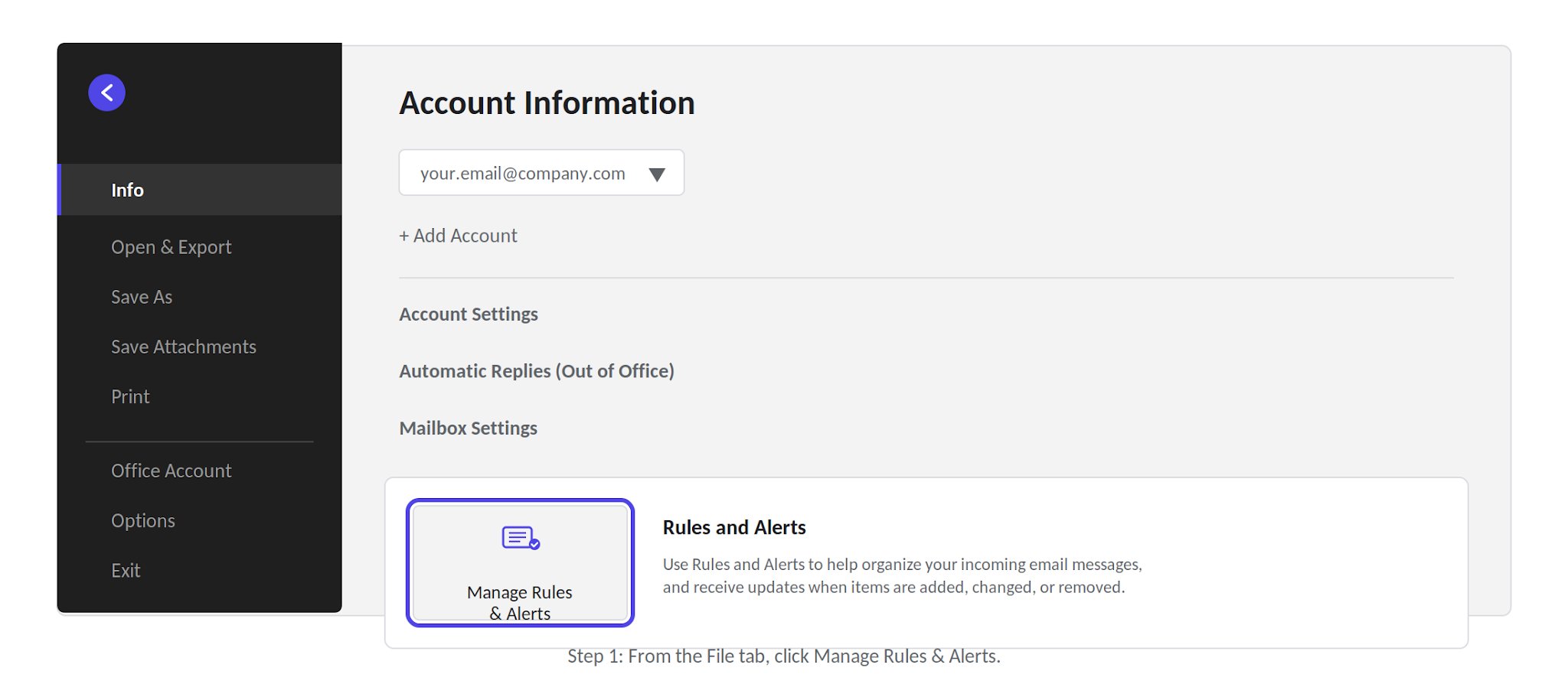
 On the **File** tab, select **Manage Rules & Alerts → New Rule**, then
**Apply rule on messages I receive** and **Next**.
On the **File** tab, select **Manage Rules & Alerts → New Rule**, then
**Apply rule on messages I receive** and **Next**.
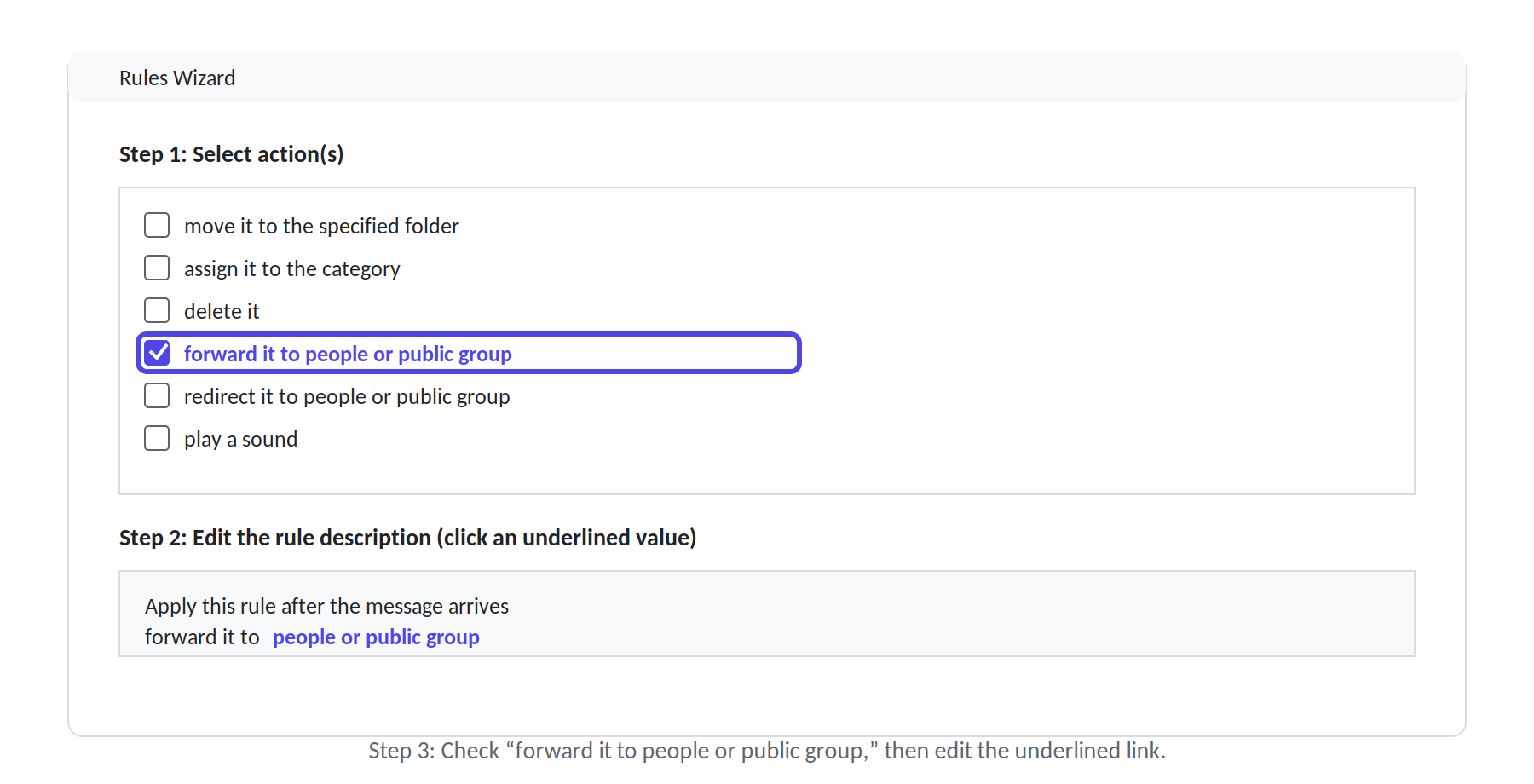
 Select your conditions: **from people or public group** for contractors, or
**with specific words in the subject** for `Bid`, `RFQ`, `Proposal`, or
`Quote`. Then check **forward it to people or public groups**.
Select your conditions: **from people or public group** for contractors, or
**with specific words in the subject** for `Bid`, `RFQ`, `Proposal`, or
`Quote`. Then check **forward it to people or public groups**.
 Select the underlined **people or public group** link, type
`bids@buildvision.io`, and select **OK**. Select **Finish**, then **Apply**.
Microsoft's own guides: [use rules to automatically forward
messages](https://support.microsoft.com/en-us/office/use-rules-to-automatically-forward-messages-45aa9664-4911-4f96-9663-ece42816d746)
and [turn on automatic
forwarding](https://support.microsoft.com/en-us/office/turn-on-automatic-forwarding-in-outlook-7f2b6d4f-d3a0-4f62-9c3a-8b8efb8e3c38).
Using a different mail client? Email
[support@buildvision.io](mailto:support@buildvision.io) and we'll walk you
through it.
## Have IT copy the desk for everyone
Rather than every rep setting up a rule, your IT team can add a mail rule that
copies **[bids@buildvision.io](mailto:bids@buildvision.io)** on the bid mail your reps send and receive. Your
reps then do nothing at all.
This needs setting up together, so start a conversation with us before your IT
team builds the rule.
## How we know the bid is yours
Everyone forwards to the same address, so BuildVision works out which company a
bid belongs to from the people on the message.
**Someone BuildVision already knows from your company has to be on the thread.**
That's usually true without you doing anything, because you're forwarding it.
If nobody recognizable is on the message, BuildVision ignores it rather than
guessing and filing it against the wrong company.
If forwarded bids aren't showing up, that's the first thing to check, and
[support@buildvision.io](mailto:support@buildvision.io) can confirm who we
recognize at your company.
## Troubleshooting
Three things cause this, in rough order of likelihood.
1. **The forwarding address was never verified.** Gmail and Outlook send a
confirmation to `bids@buildvision.io`, which nobody at your company can
read. Email [support@buildvision.io](mailto:support@buildvision.io) to
have it confirmed.
2. **Your tenant blocks external forwarding.** See
[Before you start](#before-you-start).
3. **Nobody we recognize was on the thread.** See [How we know the bid is
yours](#how-we-know-the-bid-is-yours).
That's expected until we confirm it. Gmail won't let you forward to an
address that hasn't confirmed the request, and the confirmation goes to us.
Email [support@buildvision.io](mailto:support@buildvision.io) and we'll
action it, then the address shows as verified.
Microsoft 365 is blocking external forwarding through its outbound spam
policy. Your administrator can allow it: [outbound spam policies and external
email forwarding](https://learn.microsoft.com/en-us/defender-office-365/outbound-spam-policies-external-email-forwarding).
For Gmail, yes, unless you want your whole inbox forwarded to BuildVision. A
forwarding address on its own applies to everything. Outlook rules always
carry a condition, so the equivalent risk doesn't arise there.
## What forwarding costs you
Forwarding is the fallback, not the recommended path. Forwarded mail is less
reliable at detecting projects and files, and at finding [saved credentials](/integrations/email/saved-credentials) for
bidding portals, because forwarding rewrites the message and can break links or
strip context. BuildVision still pulls what it can from the links and
attachments it finds.
If you can [connect the inbox](/integrations/email/connect-inbox) instead, do
that.
Select the underlined **people or public group** link, type
`bids@buildvision.io`, and select **OK**. Select **Finish**, then **Apply**.
Microsoft's own guides: [use rules to automatically forward
messages](https://support.microsoft.com/en-us/office/use-rules-to-automatically-forward-messages-45aa9664-4911-4f96-9663-ece42816d746)
and [turn on automatic
forwarding](https://support.microsoft.com/en-us/office/turn-on-automatic-forwarding-in-outlook-7f2b6d4f-d3a0-4f62-9c3a-8b8efb8e3c38).
Using a different mail client? Email
[support@buildvision.io](mailto:support@buildvision.io) and we'll walk you
through it.
## Have IT copy the desk for everyone
Rather than every rep setting up a rule, your IT team can add a mail rule that
copies **[bids@buildvision.io](mailto:bids@buildvision.io)** on the bid mail your reps send and receive. Your
reps then do nothing at all.
This needs setting up together, so start a conversation with us before your IT
team builds the rule.
## How we know the bid is yours
Everyone forwards to the same address, so BuildVision works out which company a
bid belongs to from the people on the message.
**Someone BuildVision already knows from your company has to be on the thread.**
That's usually true without you doing anything, because you're forwarding it.
If nobody recognizable is on the message, BuildVision ignores it rather than
guessing and filing it against the wrong company.
If forwarded bids aren't showing up, that's the first thing to check, and
[support@buildvision.io](mailto:support@buildvision.io) can confirm who we
recognize at your company.
## Troubleshooting
Three things cause this, in rough order of likelihood.
1. **The forwarding address was never verified.** Gmail and Outlook send a
confirmation to `bids@buildvision.io`, which nobody at your company can
read. Email [support@buildvision.io](mailto:support@buildvision.io) to
have it confirmed.
2. **Your tenant blocks external forwarding.** See
[Before you start](#before-you-start).
3. **Nobody we recognize was on the thread.** See [How we know the bid is
yours](#how-we-know-the-bid-is-yours).
That's expected until we confirm it. Gmail won't let you forward to an
address that hasn't confirmed the request, and the confirmation goes to us.
Email [support@buildvision.io](mailto:support@buildvision.io) and we'll
action it, then the address shows as verified.
Microsoft 365 is blocking external forwarding through its outbound spam
policy. Your administrator can allow it: [outbound spam policies and external
email forwarding](https://learn.microsoft.com/en-us/defender-office-365/outbound-spam-policies-external-email-forwarding).
For Gmail, yes, unless you want your whole inbox forwarded to BuildVision. A
forwarding address on its own applies to everything. Outlook rules always
carry a condition, so the equivalent risk doesn't arise there.
## What forwarding costs you
Forwarding is the fallback, not the recommended path. Forwarded mail is less
reliable at detecting projects and files, and at finding [saved credentials](/integrations/email/saved-credentials) for
bidding portals, because forwarding rewrites the message and can break links or
strip context. BuildVision still pulls what it can from the links and
attachments it finds.
If you can [connect the inbox](/integrations/email/connect-inbox) instead, do
that.